Capture a sample
Capture a few real records to build and test your pipeline. You can inspect the records as they arrive and stop as soon as you have enough.
Choose a capture target
- Work on your draft branch. Configure a source and its credentials.
- Open Build → Resources → Samples, choose + Add sample, then Capture. The pipeline editor has the same Capture button above its list of samples. The sample you capture there becomes the editor's sample.
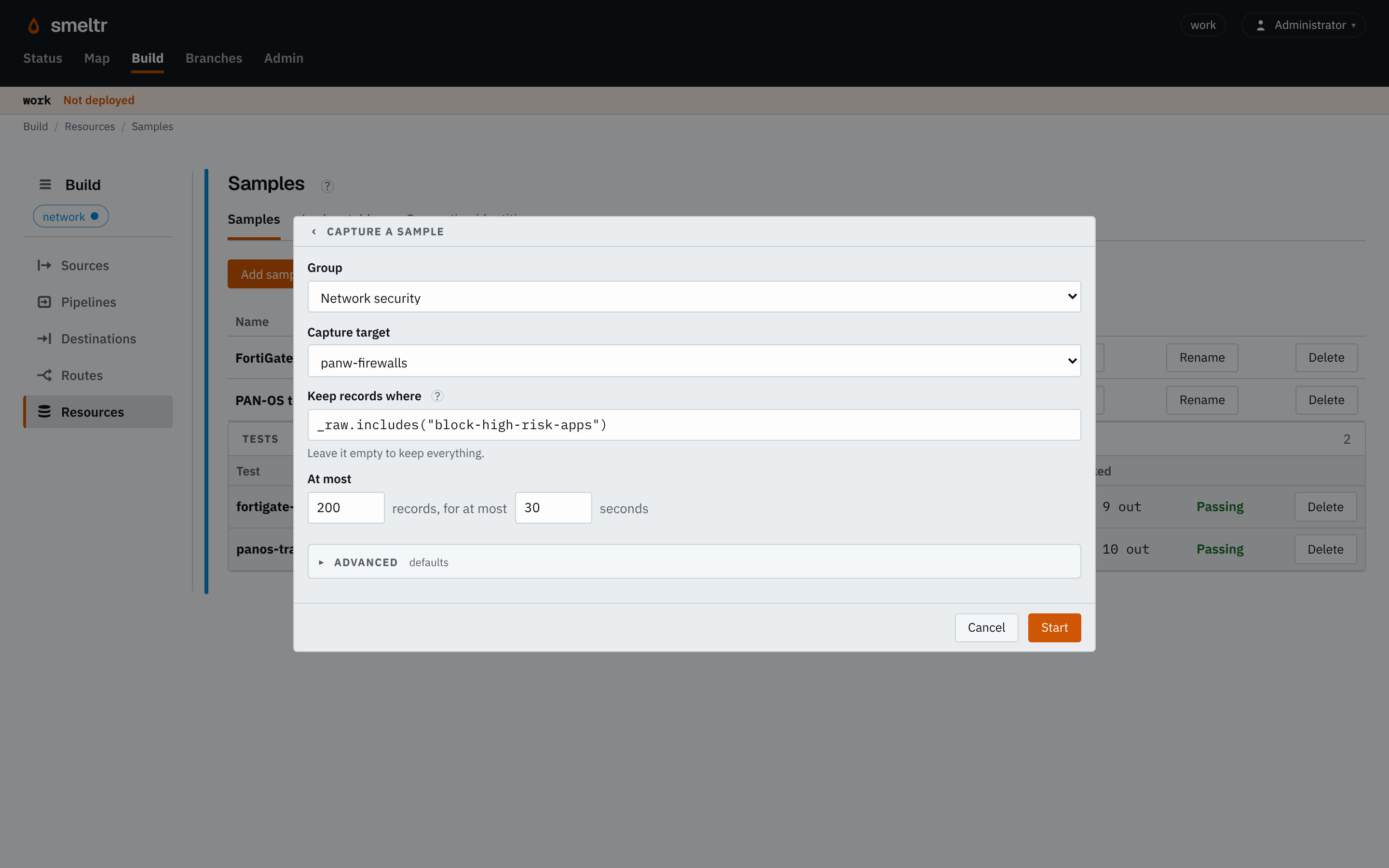
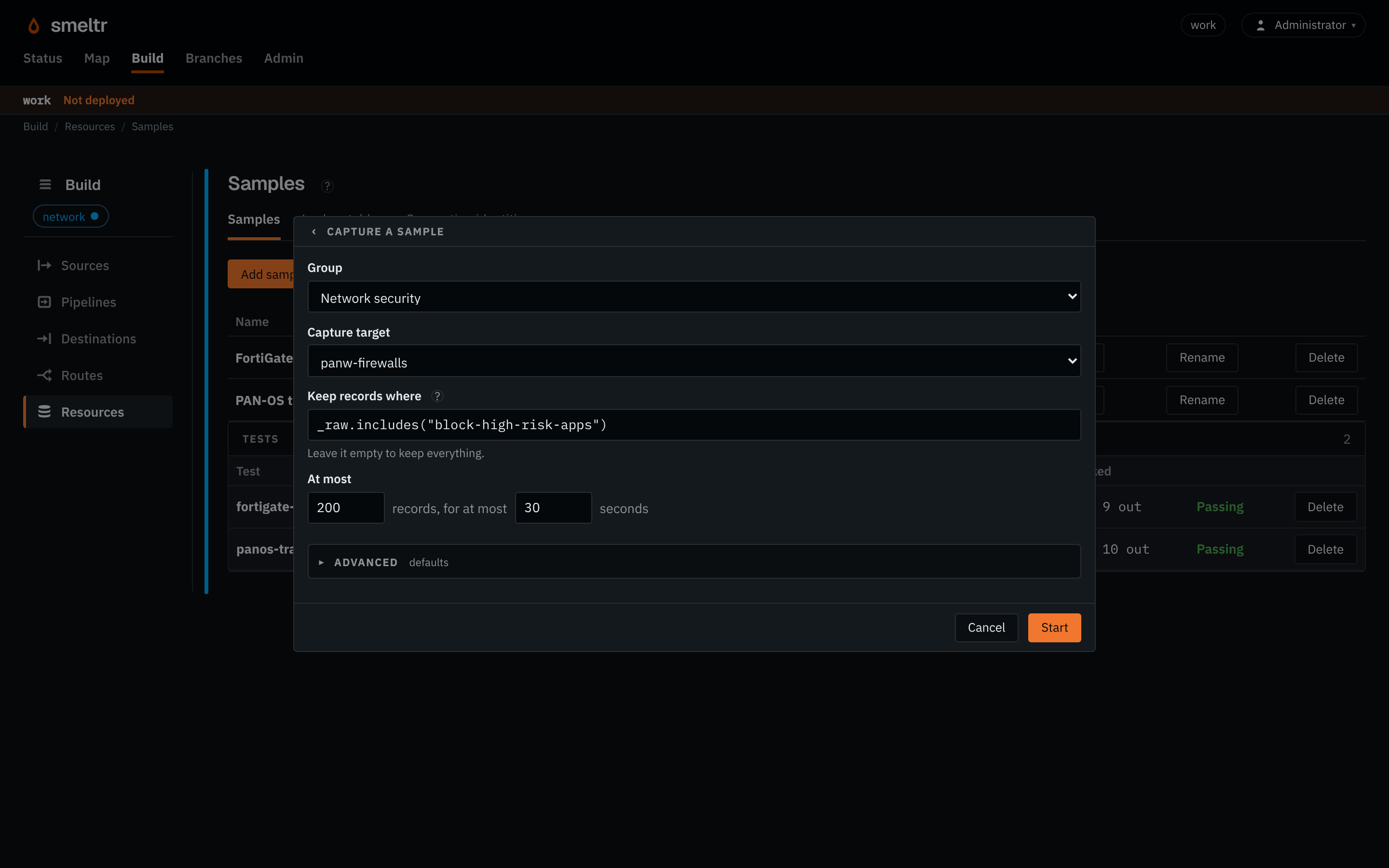
- Choose the worker Group and Capture target.
The capture uses the source configuration on your branch. A worker already reading that source takes samples from the records flowing through it. Otherwise it opens a separate reader without saving a new reading position.
A Kafka or Event Hubs capture reads in real time by default. To read older records, open Advanced and set Start at. Existing source reading positions will remain unchanged.
Collect records
- Leave Keep records where empty for all records, or enter a condition such as
_raw.includes("error"). - Set At most to the total number of records you want, up to 1,000, and choose a time limit. Workers share the total.
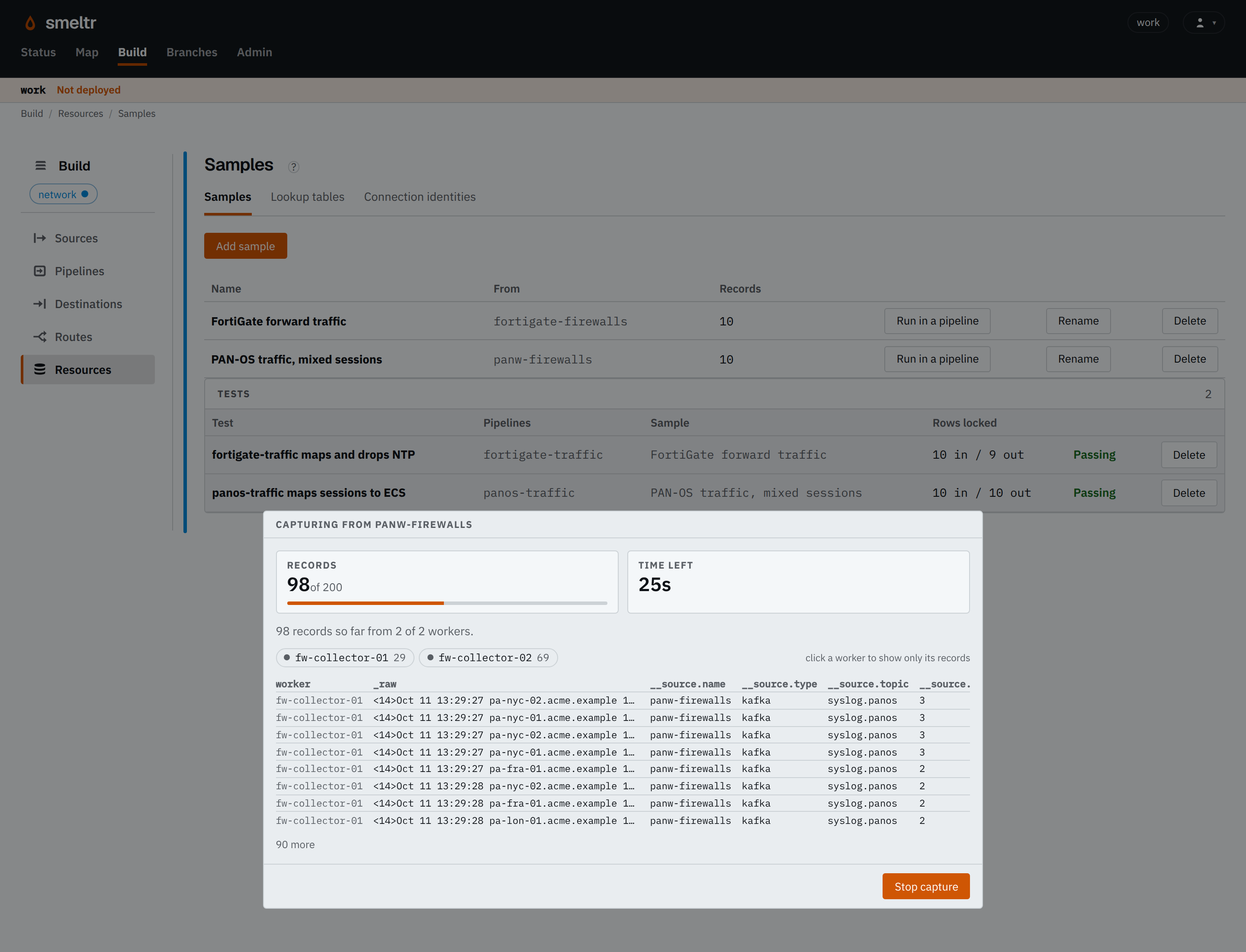
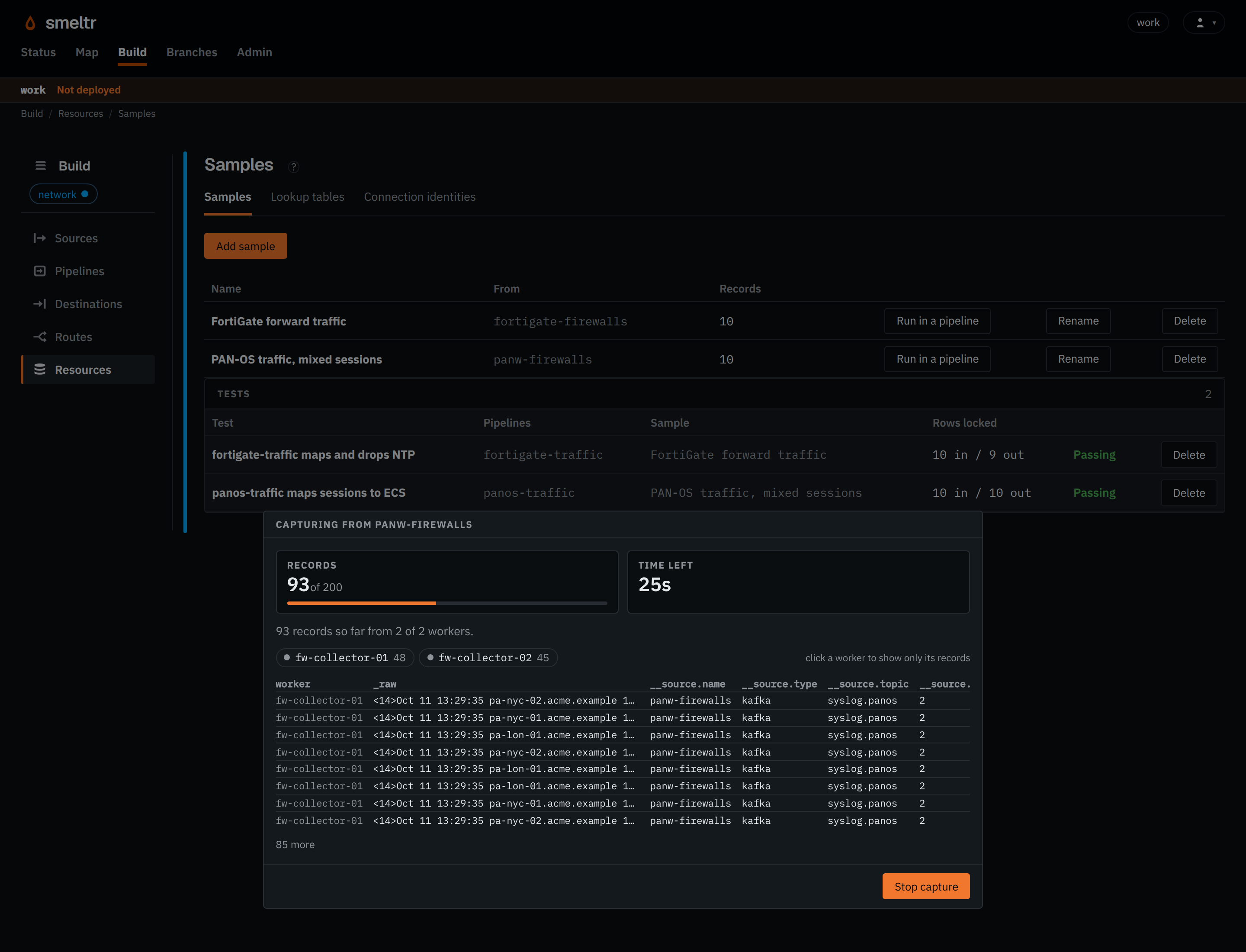
- Select Start. Inspect the incoming records and worker counts. Select a worker chip to view only that worker's records.
- Wait for the capture to finish, or select Stop capture to keep what has arrived so far.
The filter runs before the pipeline. It can read _raw and fields the source
provides; fields your parser creates are not available yet. The filter does not support array map and filter calls.
Save and test
Enter a name under Save as and select Save sample. Open the saved sample in your pipeline, run it, and inspect the output. Save an expected result as a test, following the Build page. Choose Edit on a sample's row under Build → Resources → Samples to change it.
You need at least one captured record to save. Choose Discard if the records are not useful. Capture only enough to test the case you care about: saved samples become part of the versioned configuration.
Capture a blocked source
Capture works on a blocked source or destination. Select it on the Map and choose Capture. A blocked worker shows the records holding it up with __exception.message first, and other workers still show new records.
If no records arrive
- Read the reason shown for each worker. Check its connection and credentials if it failed.
- Try without a filter, send a known record, and capture again.
- Check that the selected group has online workers and that the source has records available during the capture window.
You can sample Smeltr metrics and logs even before you deploy that source. They describe the process serving the capture. The worker may refuse a logs capture when another reader already holds the log buffer; the worker's reason explains this.